Results View
The content displayed in this view can be the result of a search with the Traffic View’s Find tool, or a filter applied to a live or saved capture, in this way you will be able to visualize a subset of captured packets. Every time a search or a filter is applied in the Traffic View, the current Results View information will be updated with the new criteria.
The Results View’s toolbar has the Auto Scroll To Last Packet button, and the ‘Find Packets’ tool with which you can make string searches inside the view. The comments of the packets can not be added or modified from the Results view, you will have to do it in the Traffic view, the changes in the comments are synchronized, so when you modify a comment in the Traffic view it will appear in the Results View automatically.

Synchronization of the packet selected
The Results View’s and Traffic view’s packet selection are synchronized, when you select a packet in either of the views the same packet will be selected and scrolled in the other view. The Results view will keep its the last packet selected in the case that the selected packet in the Traffic view doesn’t exist in the Results view.

Columns
The columns of the Result view have the same Functionality as the columns in the Traffic view, except that the configuration(width and order) of the columns in the Result view is not saved in the environment variables, so even if you set a different configuration for the columns of the Result view and the columns of the Traffic view, they will have the same when Ubiqua is opened. Also the Result view is not affected by the changes done to the columns from the Traffic tab in Preferences.
Scroll bar’s tool tip
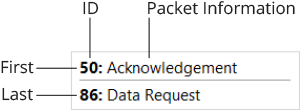
The Results view’s and Traffic view’s scroll bar have a tooltip that will be shown while you press it. The tooltip will show you a preview of the first and last packet that will come into view when you release the scroll bar. The preview of the packets includes the packet’s ID and Packet Information.
Status label
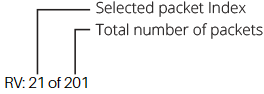
The status label is located in the Status bar, the label has the format “RV: total” or “RV: Index of Total” depending if there is a packet selected or not in the Results view.
-
Index - Is the index of the packet selected in the Results View, it is not the same as the packet id, this will not be present if there isn’t any packet selected in the Results view.
-
Total - Is the total number of packets in the Results View, it includes the packets that where Reconstructed (for this reason it might be bigger than the total number of packets in the Traffic View).